Usually, installing AdGuard Home on a router involves a lot of terminal gymnastics—downloading binaries, messing with ports, and praying you don’t break your DNS.
But running AdGuard Home directly on your router is the correct way to do it. It covers every device in your house (even that smart fridge) without needing to configure them individually. Plus, it’s faster than routing DNS requests to an external Pi-hole.
Video Tutorial 🔗
If you prefer watching a video tutorial, check this out:
The Prerequisites 🔗
Before we start, you need a router with enough juice.
- Architecture: ARM64 is best (like the Raspberry Pi 4 or modern Filogic routers). RAM IPS/MIPS routers might struggle.
- Storage: AdGuard Home needs about 30MB for the binary + space for logs. If your router has only 16MB flash, you’ll need an external USB drive mounted at
/optor overlay. - Ports: We need to move the default configured
dnsmasqoff port 53.
The “I Just Want It to Work” Method (Automated Script) 🔗
I wrote a shell script that detects your architecture, handles the dependencies, and does the port shuffling for you.
Connect to your router via SSH and copy-paste this one-liner (you can review the script first):
sh -c "$(curl -sL https://gist.githubusercontent.com/indraAsLesmana/e892ccee31276fd842158cab30949d02/raw/install.sh)"(Note: If you are running this locally, you can modify the URL to point to where you host the script)
What this script does:
- Updates
opkgand installsca-bundle,curl,tar. - Detects if you are on
aarch64orx86_64orarmv7. - Downloads the correct binary from AdGuard.
- Moves the default
dnsmasqto port 54 (so port 53 is free). - Installs AdGuard Home as a service.
The Manual Method 🔗
If you prefer to know exactly what’s happening, here is the step-by-step breakdown.
1. Install Dependencies 🔗
We need SSL support to download the files.
opkg update
opkg install ca-bundle wget-ssl curl tar
2. Prepare the Directory 🔗
We generally use /opt for third-party applications.
mkdir -p /opt/AdGuardHome
cd /opt
3. Download AdGuard Home 🔗
Check your architecture with uname -m.
- If
aarch64-> usearm64binary. - If
armv7l-> usearmv7binary.
# For ARM64
wget https://static.adguard.com/adguardhome/release/AdGuardHome_linux_arm64.tar.gz -O AdGuardHome.tar.gz
tar -xzvf AdGuardHome.tar.gz
rm AdGuardHome.tar.gz
4. Handle the DNS Port Conflict 🔗
OpenWrt uses dnsmasq on port 53 by default. We need to move it out of the way so AdGuard Home can be the primary DNS server.
uci set dhcp.@dnsmasq[0].port="54"
uci commit dhcp
service dnsmasq restart
Verify port 53 is free:
netstat -tuln | grep 53It should be empty (or at least not showing a listener on 0.0.0.0:53).
5. Advertise AdGuard Home to Clients 🔗
To ensure all clients use AdGuard Home, we explicitly tell the DHCP server to announce our IP as the DNS server.
# Get router IP (usually 192.168.1.1)
IP=$(uci get network.lan.ipaddr)

# Set Option 6 (DNS Server)
uci -q delete dhcp.lan.dhcp_option
uci add_list dhcp.lan.dhcp_option="6,$IP"
uci commit dhcp
service dnsmasq restart
6. Install and Start 🔗
Now we install the service so it starts on boot.
cd /opt/AdGuardHome
./AdGuardHome -s install
./AdGuardHome -s start
Configuration 🔗
Once verified running, open your browser and go to:
http://192.168.1.1:3000 (Replace with your router’s IP)
Follow the wizard:
- Admin Web Interface: Bind to port 3000 (or 8080). Do NOT bind to 80, as that is your OpenWrt LuCI interface.
- DNS Server: Bind to port 53.
And that’s it! You now have network-wide ad blocking.
7. See Client Names (Reverse DNS) 🔗
By default, AdGuard Home only sees IP addresses. To see hostnames (like “Indra-iPhone”), go to Settings > DNS settings.
- Check Enable reverse resolving of clients’ IP addresses.
- Under Private reverse DNS servers, enter:
127.0.0.1:54
This tells AdGuard to ask OpenWrt (dnsmasq) for the names of devices connected to your network.
8. Bonus 🔗
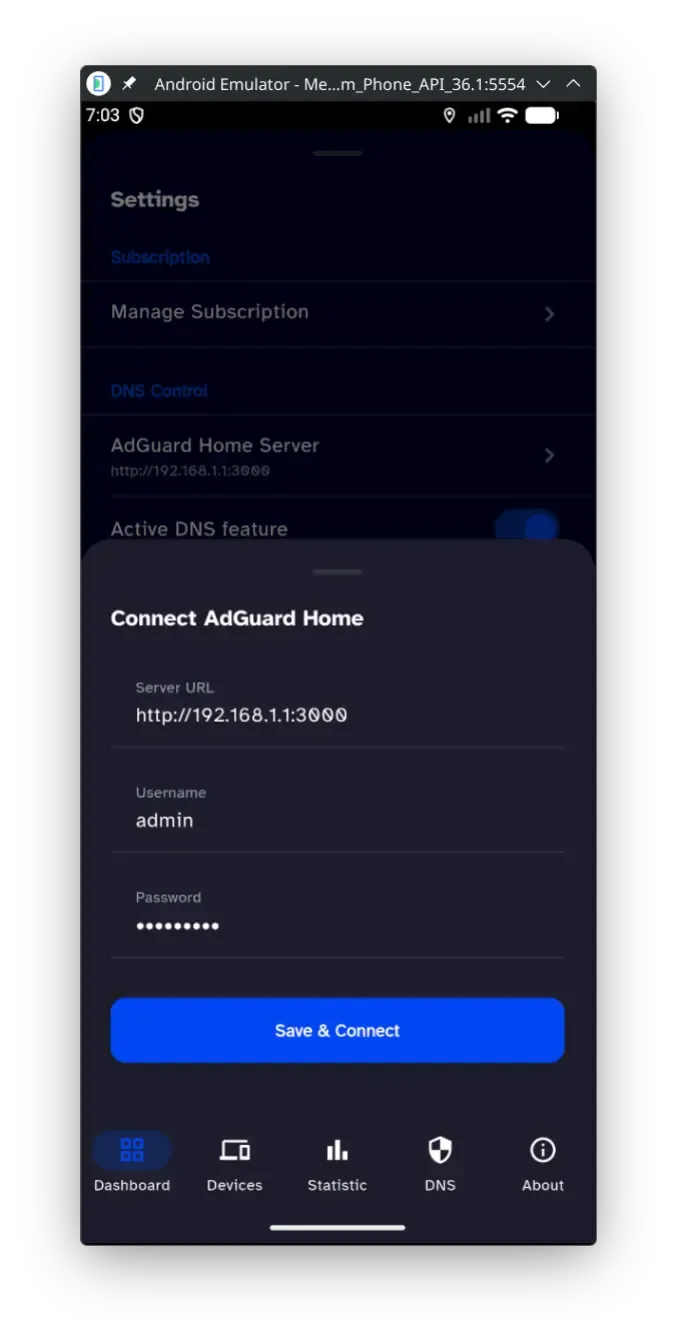
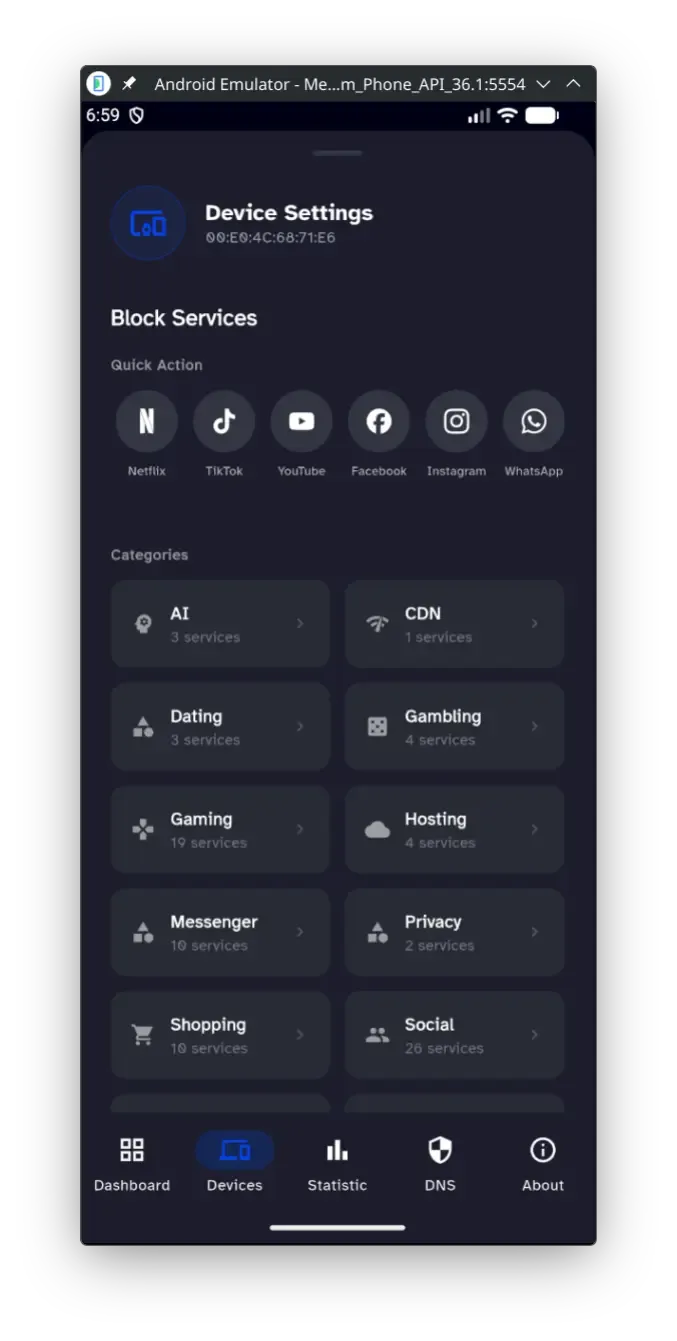
You can control Adguard Home easily with WRTune for OpenWrt app. Put IP 192.168.1.1:3000.
Verification 🔗
To verify it’s working, go to the Dashboard and check “Query Log”. Then, on your phone/laptop, visit a site. You should see the request appear in AdGuard Home almost instantly.